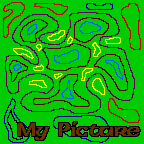
while <img src="http://members.delphi.com/ve5cap/mypic.jpg"> shows this one:

A look at Hypertext Markup Language (HTML)
Part 3
Basic Text Formatting, Images and Links:
Images:
Most browsers only understand
two types of images: GIF (Graphics Interface Format) and JPEG (Joint Photographic
Experts Group). Images are controlled by the <img> tag. This tag will
have one or more attributes, "src" being the most common. It specifies
which image to use. For example, <img src="mypic.gif> allows you
to see this image:
while <img src="http://members.delphi.com/ve5cap/mypic.jpg">
shows this one:
The major difference between the two is that the first one is found on this site, while the second one is found on another site.
It is also possible to change the size of the image by specifying the height and width of an image using <img height ="#"> or <img width="#">. This, by the way, doesn't change the size of an image to make it load faster. It just changes the size you see on the page.
Another thing you can
change, as far as images go, is the border. You can remove a border by typing
in <img border="0">. Usually this function is reserved to indicate
that the image is a link. The border size is adjusted by adding <img border="#">.
For example, I can add a 5 pixel wide border to "mypic.jpg" by typing
in <img srce="mypic.gif" border="5">. It looks like
this:
Now, if I wish, I can use it to link this page to another. Press the image to continue.